How To Guides
How to Share Your Meta Pixel for Smarter Campaigns

Unlocking smarter tracking, stronger targeting, and clearer campaign results starts with one simple step.
Sharing your Meta Pixel with Gray Digital Media gives our team the access needed to track website actions, optimize your targeting, retarget site visitors, and deliver transparent conversion reporting.
The result? Campaigns built on real data, with visible ROI we can actually measure.
Follow the steps below to share your unique Meta pixel.
What Pixel Sharing Enables
Before diving in, here is a quick look at what becomes possible once your Meta Pixel is shared with GDM:
- Website Action Tracking: See exactly how users interact with your site after engaging with your ads.
- Targeting Optimization: Reach the right audiences with smarter, data-informed ad delivery.
- Site Retargeting: Re-engage visitors who have already shown interest in your business.
- Clear Conversion Reporting: Know which campaigns are generating real results.
- Visible ROI: Connect your ad spend directly to measurable business outcomes.
Before You Begin
Business Manager admins will need to complete a one-time setup to establish the business relationship before sharing a pixel, app SDK, or offline event information.
Here is what to confirm before getting started:
- Declare the type of business relationship with the agency.
- Accept Meta's Business Tools Terms of Service.
- Get agreement from the business receiving the sharing request.
To check the status of any pending share requests, navigate to:
- Business Settings > Data Sources > Pixels > Partners
- Business Settings > Data Sources > Offline Event Sets > Partners
- Business Settings > Accounts > Apps > Partners
Step-by-Step: Sharing Your Meta Pixel with GDM
Step 1: Log Into Business Manager and Navigate to Pixels
Log into your Meta Business Manager account and go to:
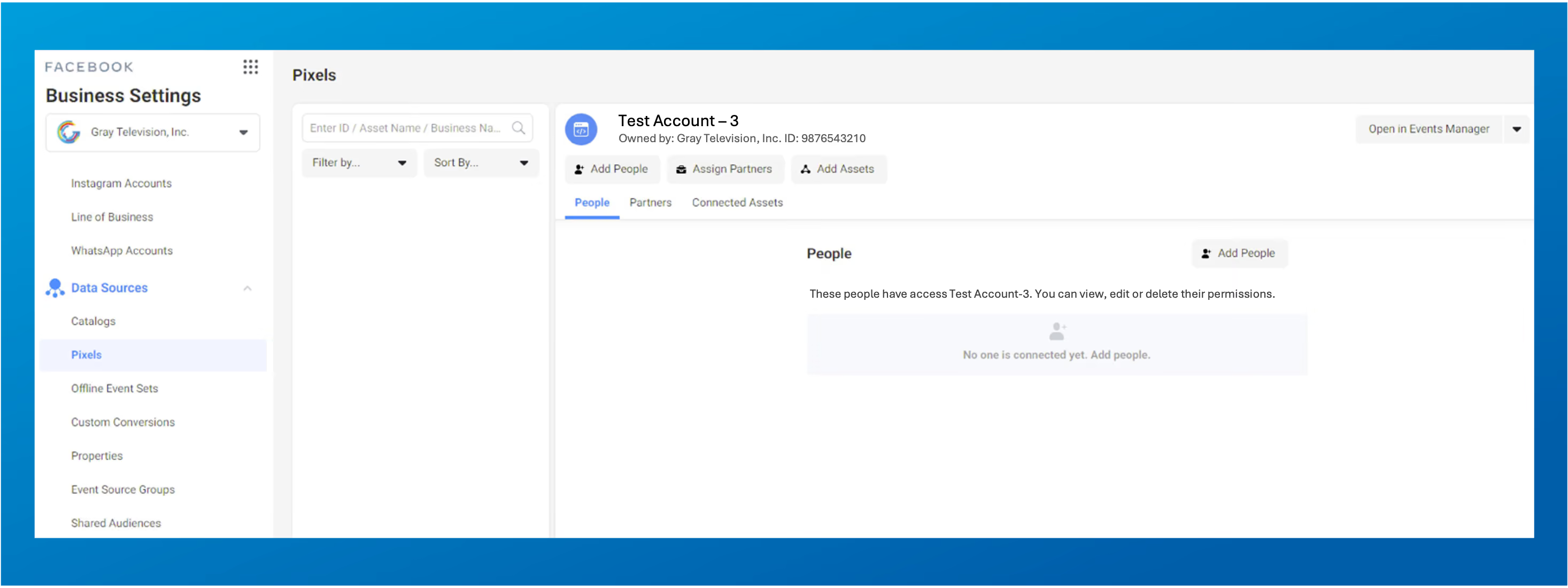
Business Settings > Data Sources > Pixels
Step 2: Select "Assign Partners"
On the right-hand side of the Pixels screen, select Assign Partners.
In this example, we're using a fictitious account, Test Account-3, and will be sharing the pixel with GDM.
Step 3: Enter GDM's Partner Business ID
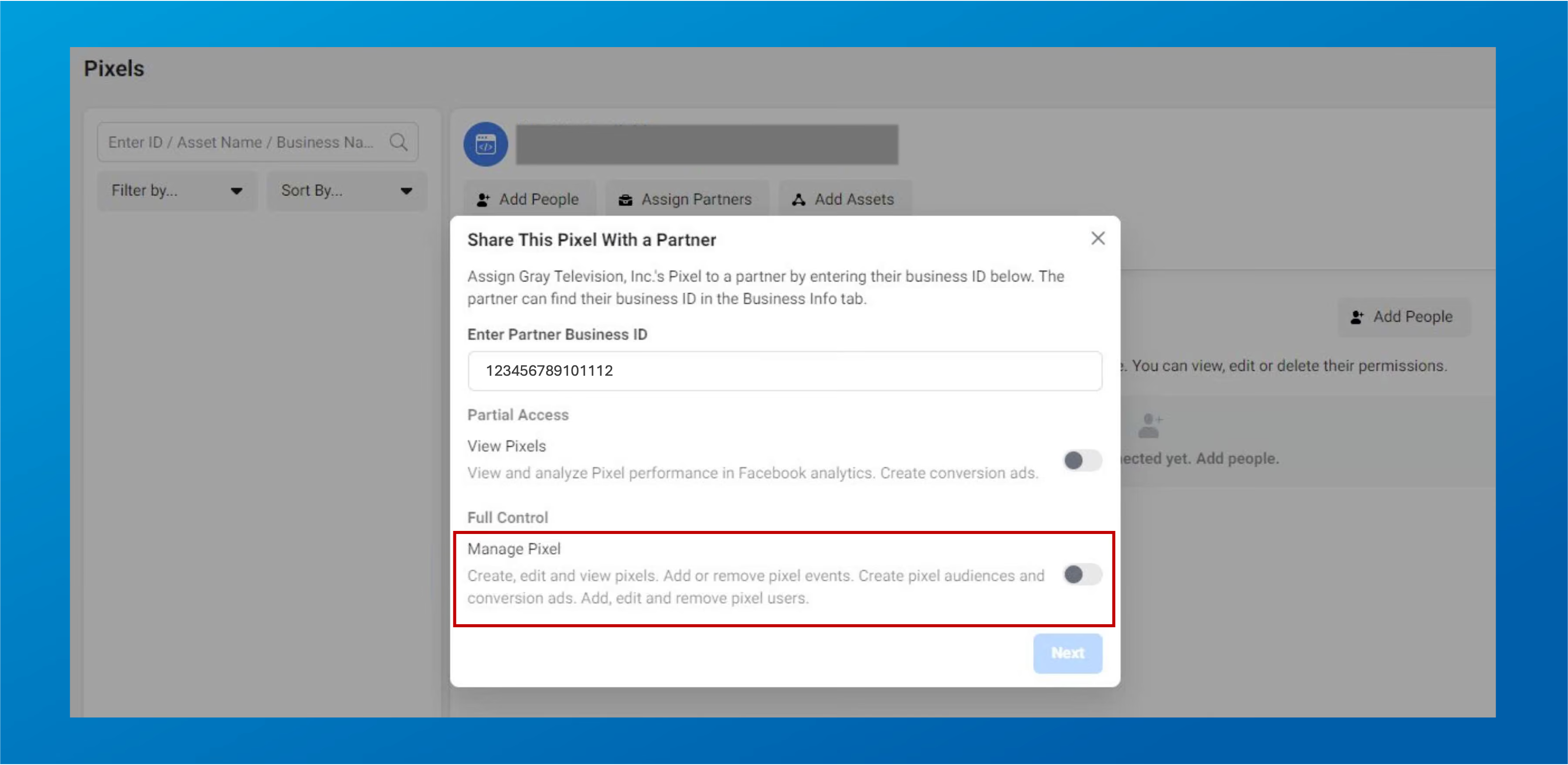
When prompted, enter the partner's Business ID. In this example, GDM's unique Business ID is: 123456789101112
That is the number you would enter.
Step 4: Select "Manage Pixel" (Full Control)
You will be presented with two access options:
Select "Manage Pixel" (Full Control). GDM will need full management access to properly configure and optimize your pixel for campaign performance.
Step 5: Click "Next" to Complete the Share
Review your selections and click Next to finalize the sharing request.
You're All Set!
Once the sharing request is submitted, GDM's team will have the access needed to activate tracking, build audiences, and connect your campaigns to real, measurable results.